
Getting the Most Out of Open Education Association Resource Boards: A Guide to Airtable
The Open Education Association's resource boards, the Webinar Calendar, Conference List, Opportunity Board, Hot off the Press, and Glossary, are all built on Airtable, a database tool that offers more ways to explore data than you may realize. Since every board uses the same platform, anything you learn here applies across all of them. If you've visited one of our boards and scrolled through without knowing what else it could do, this guide is for you.
Here are the top things to know about using Airtable public views so you can find exactly what you need, faster.
1. Your changes are yours alone. Experiment freely.
This is the most important thing to know before anything else: any sorting, filtering, searching, or view adjustments you make in a public Airtable board only affect what you see in your browser. You are not changing the board for anyone else, and you cannot accidentally break anything. Every time you return to the board, it resets to the default view. So dig in, try things, and don't worry about getting it wrong!

The top of the Hot Off the Press public board shows the toolbar with Hide fields, Filter, Group, Sort, and other view controls along the top of the page.
2. Use the search bar to find exactly what you're looking for
Every public Airtable board has a search function. Look for the magnifying glass icon in the top right-hand corner of the toolbar. Type any keyword, such as a topic, an organization name, a state, or a format, and Airtable will highlight the records containing that term. This is the fastest way to answer questions like "is there anything about AI and open education this month?" or "has anything from my state been listed?"
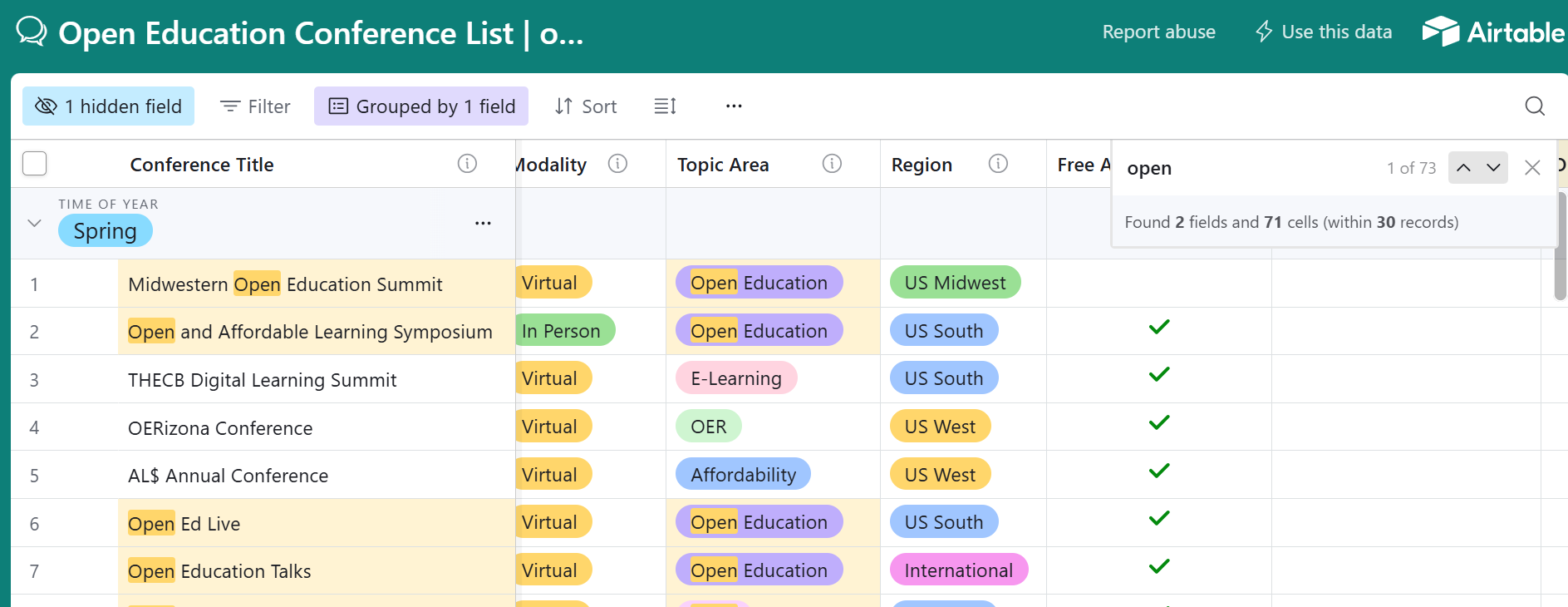
The Airtable search bar activated with the term "open" entered, displaying only records containing that word across all fields.
3. Filter records to narrow down by category
The Filter option in the toolbar lets you show only records that meet specific criteria. For example, in the Open Education Glossary, you could filter by Category to see only specific definitions. On the Opportunity Board, you could filter by Type to see only job postings. You can apply multiple filters at once to get very specific results.
To add a filter: click Filter in the toolbar, select Add condition, choose the field, the condition (such as "is" or "contains"), and the value you want to see.
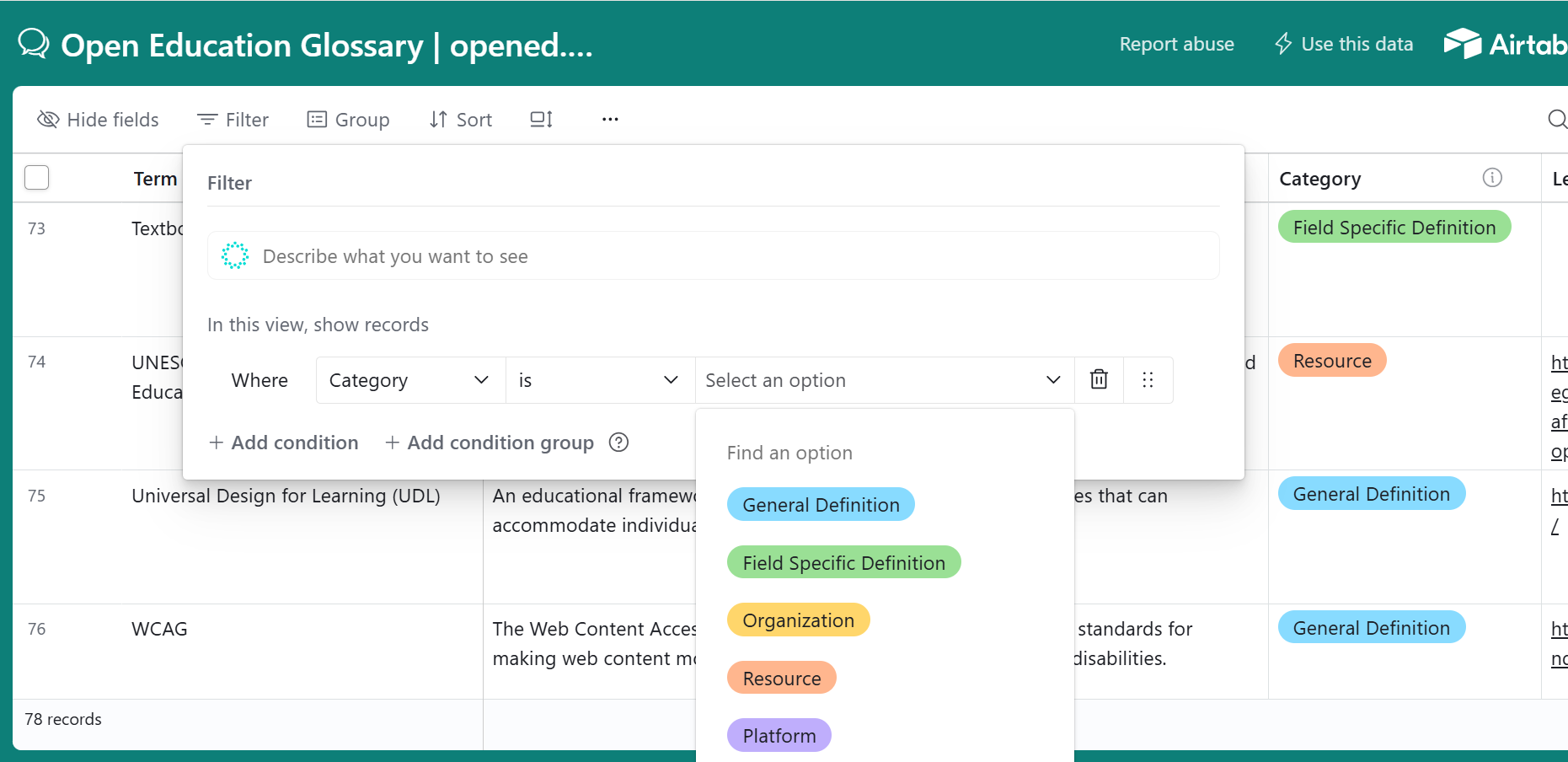
The Airtable filter panel showing the multiple conditions that can be displayed when the category is selected in the Open Education Glossary.
4. Sort records to reorder the list your way
By default, the boards are already sorted by various filters for ease of use. You can customize your view by re-sorting any column, including alphabetically by title, by deadline date, by organization name, or by region. Click Sort by in the toolbar, choose the field you want to sort by, and choose ascending or descending order. This is especially useful on the Opportunity Board if you want to see deadlines in chronological order, or on the Hot Off the Press List if you want to see the most recently published items.
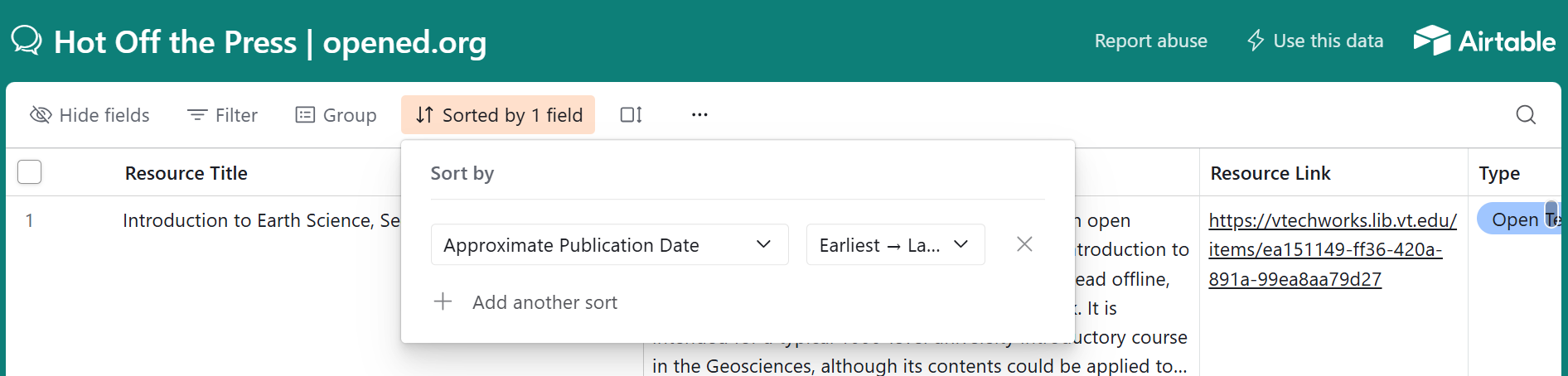
The Airtable Sorted by panel shows records sorted by approximate publication date from earliest to latest on the Hot Off the Press publication list.
5. Click into any record to see the full details
The grid view shows the most important fields at a glance, but records may have more information. Click on any row to open the full record and see the complete description, all tags, links, and any additional fields that aren't visible in the default grid. This is particularly useful on the Webinar Calendar and Opportunity Board, where descriptions can be detailed.
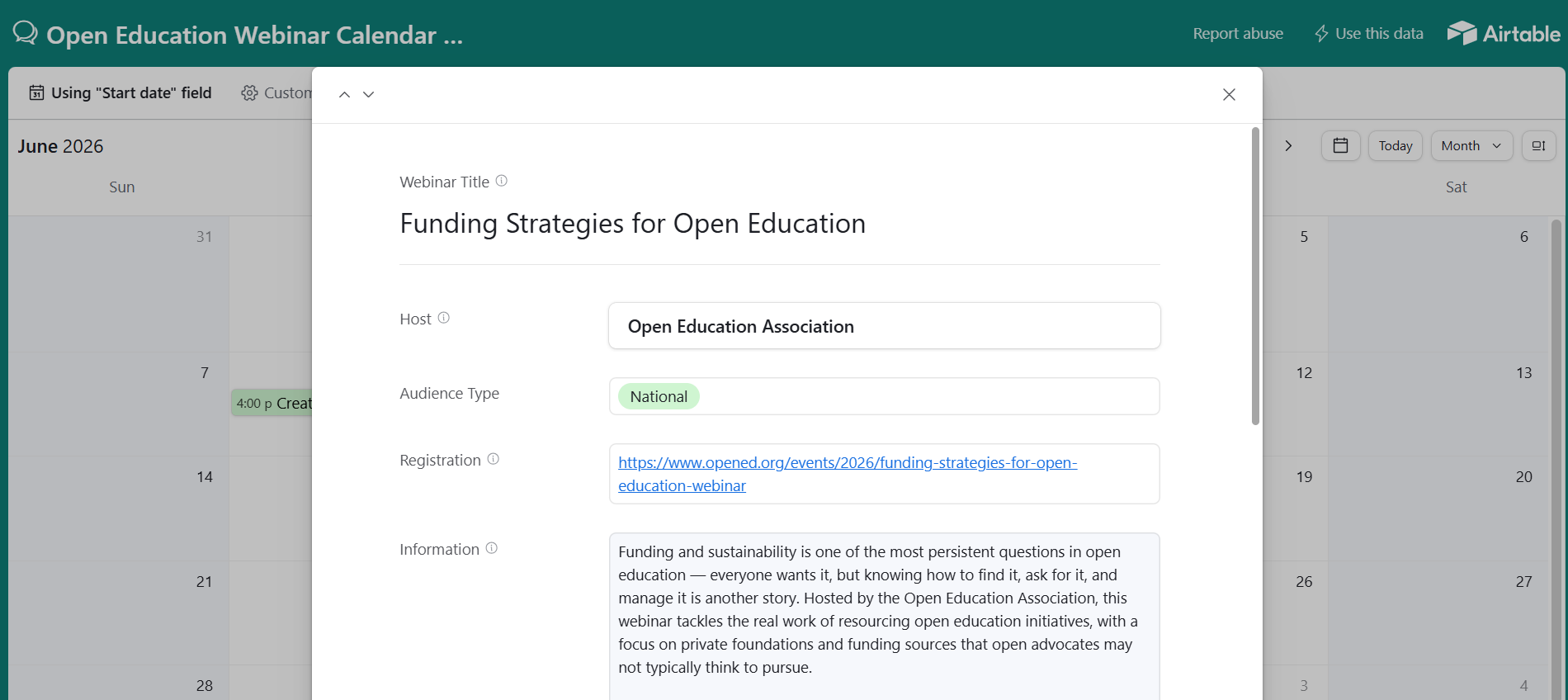
An expanded record on the Webinar Calendar showing the webinar title, host, audience type, registration link, and information for an upcoming webinar.
6. Combine search, filter, and sort for precision results
Search, filter, group, and sort all work together at the same time. You can filter to show only upcoming national webinars, sort them by date, and then search within those results for a specific topic. This combination is the most powerful way to use the boards when you're looking for something specific rather than browsing.
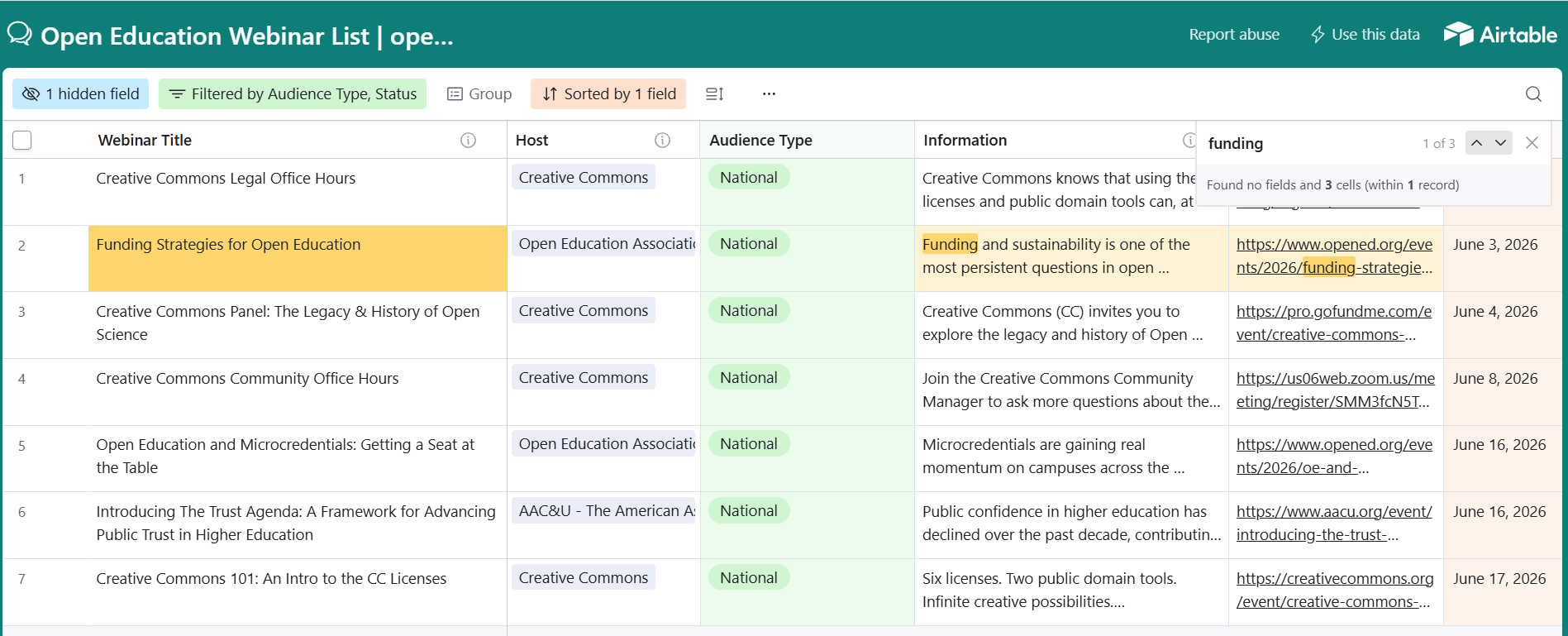
The Webinar List with a filter applied for National audience type, sorted by start date, and searched for the keyword "policy," showing one matching result.
7. Bookmark the boards and check back regularly
Our resource boards are updated on a rolling basis. Bookmarking the boards directly means you can check for the most up to date information at any time. Each board is linked from the Resources page at opened.org/resources.
Have something to add? If you know of a webinar, conference, opportunity, resource, or article that belongs on one of our boards, submit it using our Event and Resource Submission Form. We review all submissions and add qualifying items on a rolling basis. View the Resource Selection Criteria to better understand the standards each board uses for inclusion.
